
Occassionally, we may need to disable or remove a profile within ExTrace®. This could be because someone is on leave and expected to return shortly, or has left the company and isn’t expected to return. Whatever the case, options exist to database control access for profiles.
Let’s say “Joe Bloggs” has decided to go on holiday for a month and “Ron Raymond” will be using his computer/tablet for ExTrace®. If Joe’s sign in details are known to Ron, he could sign into ExTrace® and make changes to the database as Joe, which is obviously not advised. However, if Joe’s profile is disabled, Ron would be forced to use his own, resulting in the correct person being recorded on changes.
When a profile is disabled, it can still be used by administrative users for recording against works performed, but cannot be used to sign in.
If Joe leaves the company for pastures new, removing the profile, effectively, disables it from being used to sign in and cannot be used for recording any new (or old) information. Please note that the profile is never deleted; it is kept for historic reporting purposes.
So from a security perspective, keeping on top of persons actively working with ExTrace® makes sense. It is advised that all people using ExTrace® do so with their own profile.
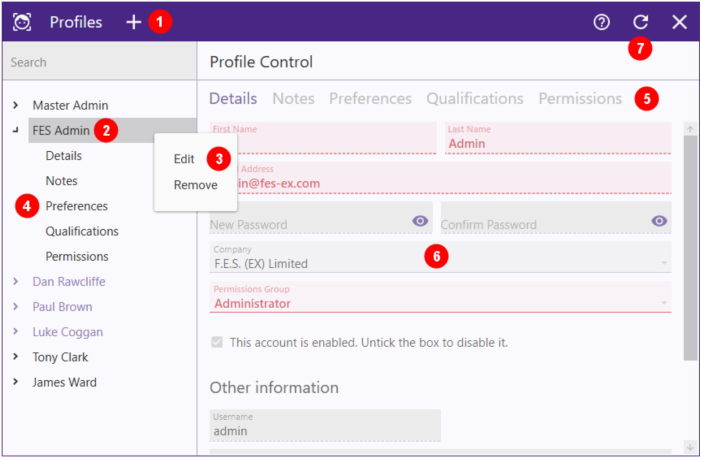
To disable a profile, follow this process:
- Open ExTrace® and sign in with an administrative profile.
- Click the Tools menu entry on the left and choose Profiles from the list.
- Find the related name in the list on the left (2) and either double-click or right-click and choose Edit (3) to enable the profile fields.
- Find and untick the tickbox showing This account is enabled on the Details tab (5).
- Click the Accept button that shows at the bottom of the window to save the change.
The profile name will show in a purple colour in the list, indicating that the entry is disabled.
To re-enable the profile, perform the same steps above, but tick the box on step 4 instead of untick.
To remove a profile, follow this process:
- Open ExTrace® and sign in with an administrative profile.
- Click the Tools menu entry on the left and choose Profiles from the list.
- Find the related name in the list on the left (2), then right-click it and choose Remove (3) from the menu.
The profile name will show in a light purple colour in the list, indicating that the entry has been removed.
To restore the profile, perform the steps above, but choose Restore from the menu instead of Remove.