
As we live in a security-conscious world, your data has to be protected. Access control is a major player in data security and, as such, ExTrace® was built with this in mind. The Profile Manager allows a user with administrative rights to create other users, assigning appropriate levels of authority for use throughout the ExTrace® ecosystem.
As with all aspects of ExTrace®, using the facility has been made as simple as possible in the form of the Profiles manager.
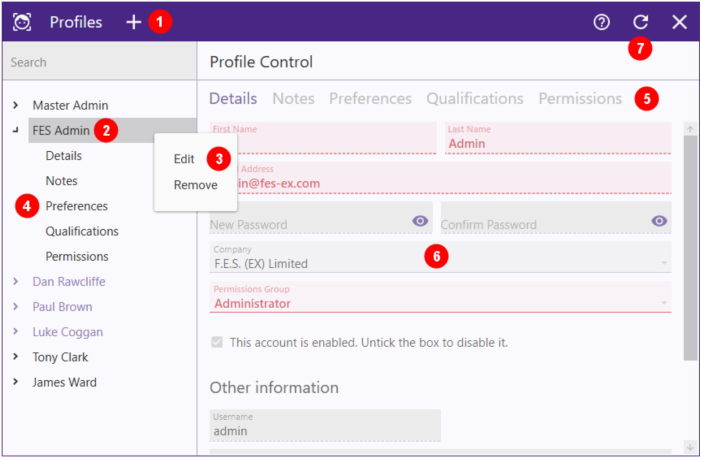
- Create a new profile – Click to empty out the fields and reset the qualifications and permissions tabs, ready for entering a new user profile.
- Profiles list – Each profile consists of 5 parts (point 4 above) that correspond with the tabs on the right (point 5 above). Selecting an entry on the listing will swap the tab on the right accordingly.
- Profile control – A simple right-click menu to allow control of the selected entry.
- Tabbed information access – Click to change tab on the right.
- Tabbed information control – This simply separates the various profile related fields into named groups for easier navigation.
- Profile fields – Parts shown as red/pink are required to enable acceptance of the changes.
- Reload – Click to reload the profiles listing and clear all fields.
Notes:
- Fields shown in pink/red are required for any changes to be accepted.
- Double-clicking on a name on the profile list enables editing for the selected profile.
- Changing the Permissions Group on the Details tab alters the tick boxes on the Permissions tab to a pre-determined selection.