
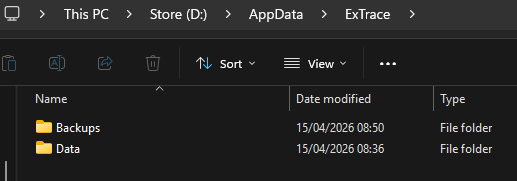
- Open File Explorer on your Windows 11 computer (desktop/laptop) and find your Data folder for ExTrace®.
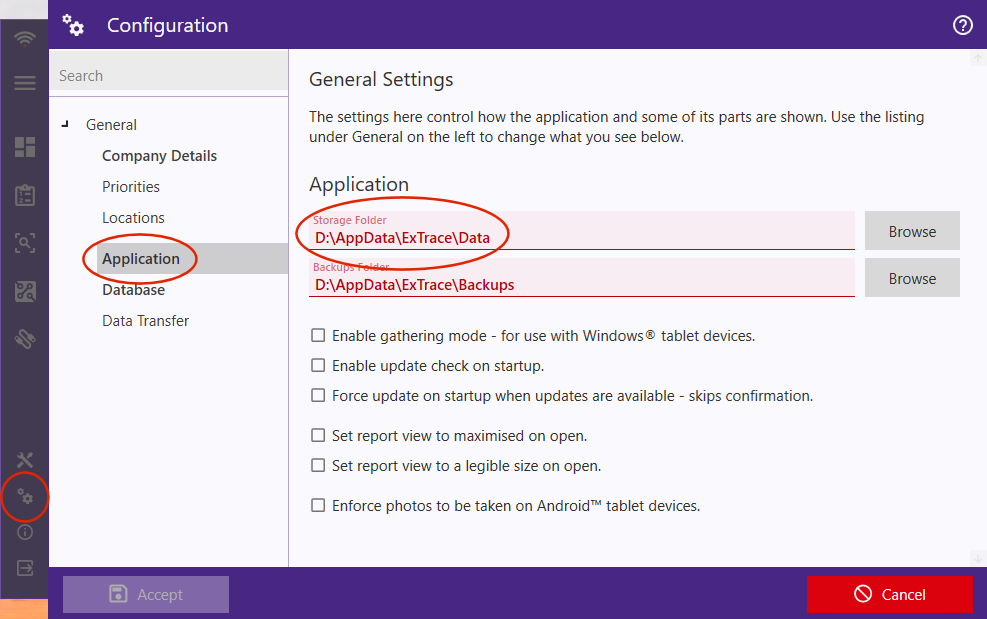
Hint: The location for this can be seen within ExTrace® Management on the Configuration window in the Application section. You may need to be signed in as an administrative user to be able to open the Configuration window.
- Find and open the folder that has the same name as your database.
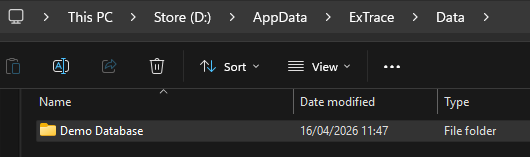
Hint: The database name can be found at the top of the main application window, next to the application name.

- In the folder found in number 2 above, you will see 3 folders. Open the attachments folder and then open the assets folder. This folder contains sub-folders related to each asset on your database, and it’s these that we’ll copy.
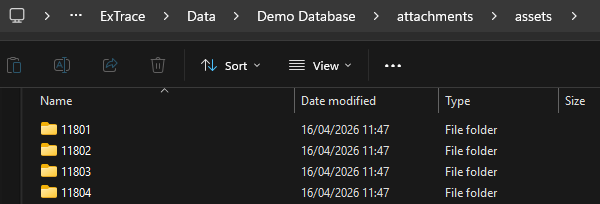
- Find and select the assets you wish to copy to the tablet device.
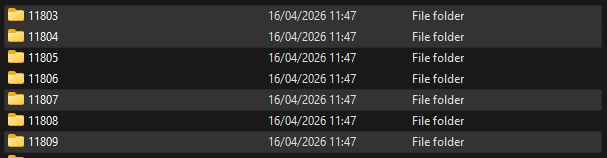
Hint: You can select multiple folders throughout the listing but holding the Ctrl key on your keyboard and clicking each folder required (as used in the image above to select the folders named 11803, 11804, 11807, 11809).
- Right-click any of the selected folders and click on Copy.
- Create a temporary folder somewhere and open it.
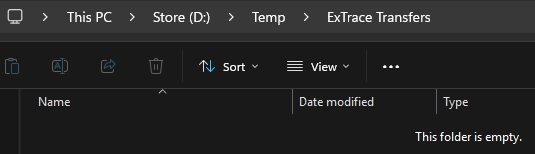
Right-click an empty area and click on Paste to make a copy of the selection here. If required, repeat numbers 4, 5 and 6 until you have a copy of all the asset folders you require in the temporary folder.
- Plug in the EX tablet using the provided USB cable and allow the computer to detect it (if speakers are plugged into the computer and not muted, a sound will be played.)
- On the tablet, swipe down from the top of the screen to show notifications. If the device connected to the computer successfully, you should see a notification that says Charging this device via USB. Tap on that notification to show a larger view of it, then tap the notification again to open its options.
- Under the Use USB for section, choose File Transfer. As soon as this is done, the tablet will reconnect to the computer, adding a drive entry to File Explorer.
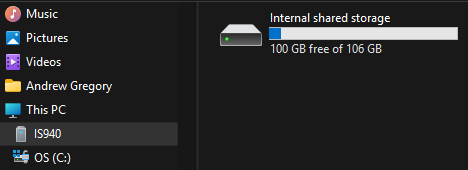
- Go back to your computer and click on the new drive entry. Open the Internal shared storage entry on the right, then open the Documents folder.
- Create a new folder and name as it something relevant, such as Asset Information or ExTrace, then open it.
- Go back to the temporary folder created at number 6 in the section above. Highlight all asset folders, right-click the selection and click on Cut.
- Navigate back to the new folder created in number 5 above. Right-click the empty area on the right and click on Paste. Allow the transfer to complete, then you should see something similar to the screenshot below.
